Understanding the Motherboard
1 🧠 Understanding the Motherboard: Your Computer’s Central Hub
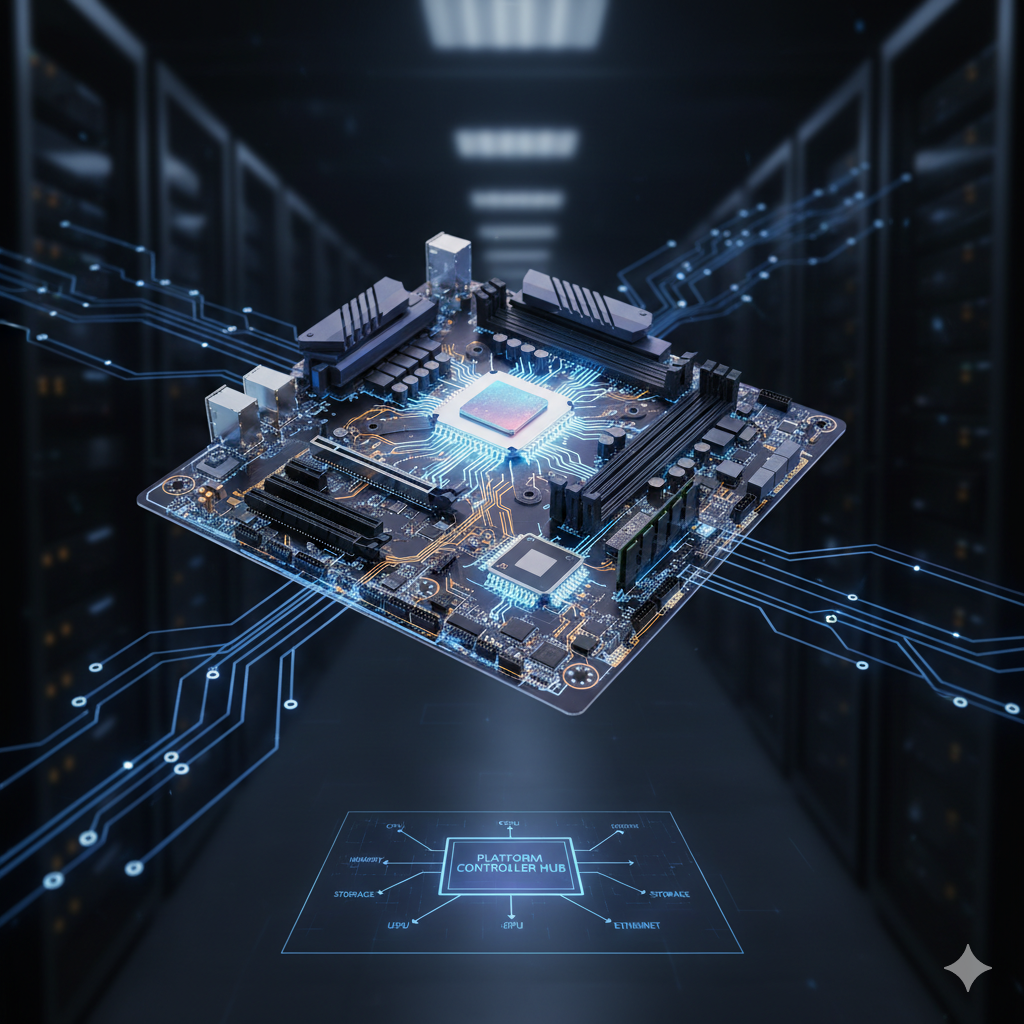
The motherboard is arguably the most crucial piece of hardware in any computer, acting as the central nervous system that connects and allows all other components to communicate. Without it, your CPU, RAM, and storage would just be a pile of inert parts. Think of it as the backbone or foundation of your computer, where everything else plugs in and works together. [1, 2, 3, 4]
1.1 🧐 What is a Motherboard?
At its core, a motherboard is a large printed circuit board (PCB) that holds and connects the main electronic components of a computer, such as the central processing unit (CPU), memory (RAM), and storage drives. It’s the central communication hub, facilitating data transfer and power distribution between all connected hardware. Every component you add to your computer, from your graphics card to your hard drive, connects to the motherboard in some way. [1, 3]
1.2 🛠️ Key Components of a Motherboard
Let’s break down the essential parts you’ll find on almost every motherboard: [2, 4]
CPU Socket: This is where the Central Processing Unit (CPU), often called the “brain” of the computer, is installed. Sockets vary depending on the CPU manufacturer (Intel’s LGA, AMD’s AM4/AM5, etc.), so compatibility is key!
RAM Slots (DIMM Slots): These elongated slots hold your Random Access Memory (RAM) modules. RAM is your computer’s short-term memory, essential for multitasking and running applications smoothly. Motherboards have a varying number of slots (typically 2 or 4) and support specific RAM types (e.g., DDR4, DDR5).
Expansion Slots (PCIe Slots): These slots are used to connect expansion cards like graphics cards (GPUs), sound cards, network cards, and solid-state drives (NVMe SSDs). PCIe (Peripheral Component Interconnect Express) is the current standard, with different “lanes” (x1, x4, x8, x16) indicating bandwidth. The longest slot is usually for the graphics card.
Chipset: This is a set of integrated circuits that manages the data flow between the CPU, memory, and peripherals. It acts as a traffic controller, determining the features and capabilities of the motherboard, such as USB ports, SATA ports, and PCIe lanes. There are typically two main parts:
Northbridge (now often integrated into CPU): Handled high-speed communication (CPU, RAM, GPU).
Southbridge: Managed slower peripherals (USB, SATA, audio).
BIOS/UEFI (Basic Input/Output System / Unified Extensible Firmware Interface): This is firmware stored on a chip on the motherboard. It’s the first software that runs when you power on your computer. It initializes and tests hardware, then loads the operating system. UEFI is the modern successor to BIOS, offering a more graphical interface, better security features, and support for larger hard drives.
Storage Connectors:
SATA Ports: Used to connect traditional Hard Disk Drives (HDDs) and Solid State Drives (SSDs) via SATA cables.
M.2 Slots: Faster, smaller slots for NVMe SSDs, which offer significantly higher speeds than SATA SSDs.
Power Connectors: These are ports where the power supply unit (PSU) connects to provide electricity to the motherboard and all its components. Key connectors include the large 20+4 pin ATX connector and the 4 or 8-pin CPU power connector.
I/O Panel (Input/Output Panel): This is the rectangular section at the back of the motherboard that sticks out of your computer case. It provides all the external ports for connecting peripherals:
USB ports (for keyboards, mice, flash drives)
Ethernet port (for network connection)
Audio jacks (for speakers, headphones, microphones)
Video outputs (HDMI, DisplayPort, DVI, VGA for integrated graphics)
CMOS Battery: A small coin-cell battery that powers the CMOS memory, which stores BIOS/UEFI settings (like date and time) even when the computer is unplugged.
1.3 🌐 The Motherboard’s Primary Functions
The motherboard performs several critical functions: [1, 3, 4]
Connectivity: It provides physical connections for all internal and external components.
Communication Hub: It allows all connected hardware to communicate with each other through various buses and pathways, enabling the flow of data.
Power Distribution: It distributes electrical power from the power supply unit to the CPU, RAM, and other components, regulating voltage as needed.
Hardware Initialization & Bootstrapping: The BIOS/UEFI firmware on the motherboard is responsible for initiating the boot process, performing a power-on self-test (POST), and handing control over to the operating system.
1.4 📏 Form Factors
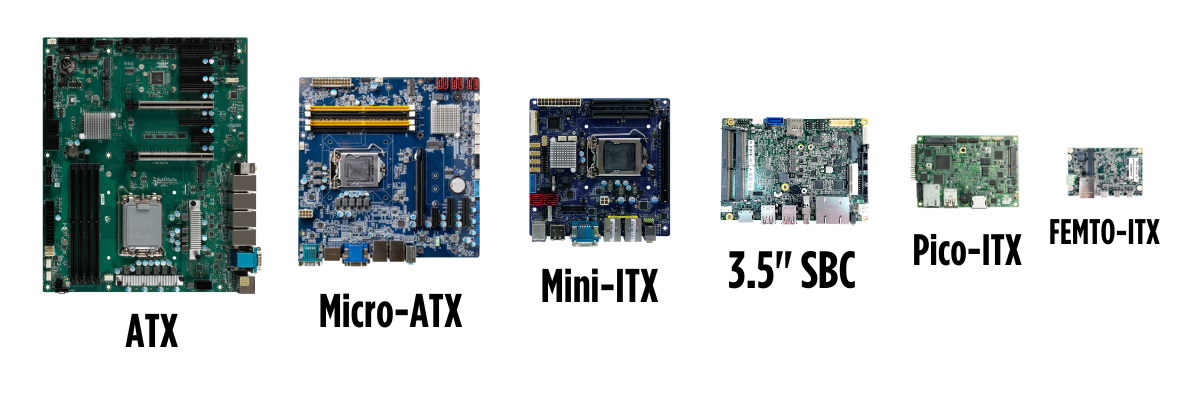
Motherboards come in various form factors, which dictate their physical size and the layout of their components. It’s important to choose a motherboard that fits your computer case. [5, 6]
ATX (Advanced Technology Extended):
Dimensions: 12 x 9.6 inches (305 x 244 mm).
Advantages: The most common standard for desktop PCs, offering a good balance of features, ample space for expansion slots, multiple RAM slots, and various ports. It provides good airflow and is highly flexible for component placement, making it suitable for most standard builds and widely available.
Disadvantages: Can be bulky for smaller PC cases.
Micro-ATX (mATX):
Dimensions: Typically around 9.6 x 9.6 inches (244 x 244 mm).
Advantages: Smaller than ATX, making it suitable for more compact desktop cases. They are often cost-effective and still offer decent expandability.
Disadvantages: Usually features fewer expansion slots (typically up to four PCIe slots) and less room for additional features compared to full ATX boards. Airflow can be more restricted in very compact mATX cases.
Mini-ITX:
Dimensions: The smallest common desktop form factor, measuring 6.7 x 6.7 inches (170 x 170 mm).
Advantages: Ideal for small form factor (SFF) builds, home theater PCs (HTPCs), or compact gaming systems due to their minimal footprint. They are often energy-efficient and can contribute to very quiet systems.
Disadvantages: Offers limited expansion (usually only one PCIe expansion slot and two RAM slots) and fewer ports. They can sometimes have a higher cost per feature compared to larger boards, and effective cooling can be challenging in extremely small cases.
E-ATX (Extended ATX):
Dimensions: Typically measuring 12 x 13 inches (305 x 330 mm), though dimensions can vary slightly.
Advantages: Designed for high-end systems, offering significantly more space, often eight or more RAM slots, more PCIe slots, and robust power delivery for stable overclocking. They are excellent for multi-GPU setups, high-performance workstations, and servers.
Disadvantages: Very large, requiring specialized full-tower or super-tower computer cases, and generally more expensive.
XL-ATX:
Dimensions: Even larger than E-ATX, with less standardized dimensions.
Advantages: Designed for extreme high-end systems that may support multiple CPUs or an unusually large number of expansion cards.
Disadvantages: Very niche, rare in consumer markets, and requires exceptionally large cases.
Nano-ITX and Pico-ITX:
Dimensions: Nano-ITX is 4.7 x 4.7 inches (120 x 120 mm); Pico-ITX is 3.9 x 2.8 inches (100 x 72 mm).
Advantages: Extremely small, making them suitable for specialized applications such as embedded systems, single-board computers, or highly compact industrial devices where space is at a premium.
Disadvantages: Not typically used in standard desktop PCs due to their minimal features and very limited expansion capabilities.
Author: Gamers Nexus | View Channel
A tour of Gigabyte’s Taiwan SMT lines and factory to show how motherboards and video cards are made from start to finish.
Now that we know how motherboards are made, let’s take a deeper look at a specific motherboard model produced by Asus, the Z890 AYW Gaming WIFI W. Also chaeck out the manual.
1.5 🏭 Industrial Motherboards
Beyond the consumer-grade motherboards discussed above, industrial motherboards are a specialized category designed for harsh environments and demanding applications. Unlike their consumer counterparts, which prioritize performance for gaming or everyday tasks, industrial motherboards emphasize reliability, durability, and long-term stability.
Key Characteristics:
Robust Design: Built with higher-quality components that can withstand extreme temperatures, humidity, vibration, and dust. They often feature extended operating temperature ranges and conformal coating for protection against environmental factors.
Extended Product Lifecycles: Designed for long-term availability (often 5-10+ years), which is crucial for embedded systems and industrial equipment that require consistent parts for maintenance and upgrades over many years.
Rich I/O Options: Feature a wider array of legacy and specialized I/O ports (e.g., serial ports like RS-232/422/485, parallel ports, GPIO) to connect to industrial equipment and legacy devices.
Fanless Operation: Many industrial motherboards are designed for fanless operation, reducing points of failure and allowing them to operate silently in dusty or enclosed spaces.
Watchdog Timers: Often include hardware watchdog timers that can automatically reset the system if software becomes unresponsive, ensuring continuous operation.
Power Input: Support wider DC power input ranges for industrial power supplies.
Typical Applications:
Factory Automation: Controlling machinery, robotics, and production lines.
Medical Equipment: Powering diagnostic tools, imaging systems, and patient monitoring devices.
Digital Signage & Kiosks: Operating public displays, interactive kiosks, and point-of-sale (POS) systems.
Gaming Machines: Used in arcade machines and slot machines where stability and longevity are critical.
Surveillance & Security: Running video surveillance systems and access control.
Transportation: Embedded in vehicles, trains, and marine vessels for control and monitoring.
1.6 Printed Circuit Boards: The Foundation of the Motherboard
Before a motherboard becomes a complex assembly of sockets, slots, and chips, it begins life as a printed circuit board (PCB)—a layered platform that electrically connects and mechanically supports all components. Understanding how PCBs are designed and manufactured provides insight into the precision engineering behind every motherboard.
1.6.1 PCB Design: Traces, Layers, and Layout
At the heart of PCB design are traces—thin conductive pathways made of copper that route electrical signals between components. These traces are carefully planned to minimize interference, maintain signal integrity, and support high-speed data transmission.
Modern motherboards use multilayer PCBs, typically ranging from 4 to 12 layers or more. Each layer serves a specific purpose: - Signal layers carry data and control signals. - Power planes distribute voltage to components. - Ground planes help reduce electromagnetic interference (EMI).
Designers use specialized software (e.g., KiCad, Altium Designer) to lay out the board, considering factors like: - Trace width and spacing for current capacity and impedance control. - Via placement to connect traces between layers. - Component footprint and thermal management.
1.6.2 PCB Manufacturing: From Substrate to Solder Mask
The manufacturing process begins with a substrate, usually made of fiberglass-reinforced epoxy (FR4), which provides mechanical strength and insulation. Here’s a simplified overview of the steps:
- Copper Lamination: Sheets of copper are bonded to the substrate.
- Photolithography: A light-sensitive resist is applied, and UV light exposes the desired trace pattern.
- Etching: Unprotected copper is chemically removed, leaving behind the trace layout.
- Layer Stacking: Multiple etched layers are aligned and laminated under heat and pressure.
- Drilling and Plating: Holes (vias) are drilled and plated to connect layers.
- Solder Mask Application: A protective layer is added to prevent short circuits and guide soldering.
- Silkscreen Printing: Labels and component identifiers are printed on the board.
1.6.3 Design Considerations for Motherboards
Motherboard PCBs must meet stringent requirements: - High-density routing for compact layouts. - Controlled impedance for high-speed buses like PCIe and DDR memory. - Thermal dissipation to manage heat from CPUs and chipsets. - Mechanical durability to withstand insertion forces and environmental stress.
These factors make motherboard PCBs among the most complex and precisely engineered circuit boards in consumer electronics.
1.7 🚀 Important Considerations for IT Students
Compatibility: Always check compatibility between your CPU, RAM, and the motherboard. Different generations of CPUs require specific sockets and chipsets, and RAM needs to be the correct type (DDR4 vs. DDR5) and speed.
Upgradability: Consider the number of RAM slots, PCIe slots, and M.2 slots for future upgrades. A motherboard with more options gives you greater flexibility.
Features: Look at features like integrated Wi-Fi, the number and type of USB ports, and advanced cooling solutions if you’re building a high-performance machine.
Understanding the motherboard is fundamental to troubleshooting, upgrading, and building computers. It’s the silent workhorse that makes everything possible!
1.8 📚 Citations
Spiceworks. (n.d.). What Is a Motherboard? Everything You Need to Know. Retrieved from https://www.spiceworks.com/tech/hardware/articles/what-is-motherboard/
Overclockers UK. (n.d.). Anatomy of a Motherboard: Everything you need to know. Retrieved from https://www.overclockers.co.uk/blog/anatomy-of-a-motherboard-everything-you-need-to-know/
Lenovo. (n.d.). What does a motherboard do? Retrieved from https://www.lenovo.com/us/en/glossary/what-does-a-motherboard-do/
HowStuffWorks. (n.d.). How Motherboards Work. Retrieved from https://computer.howstuffworks.com/motherboard.htm
Premio Inc. (2023, November 13). Motherboard Form Factors: The Ultimate Guide. Retrieved from https://premioinc.com/blogs/blog/motherboard-form-factors
Wikipedia. (n.d.). Motherboard form factor. Retrieved from https://en.wikipedia.org/wiki/Motherboard_form_factor