Desktop computers
1 Desktop Computer Components
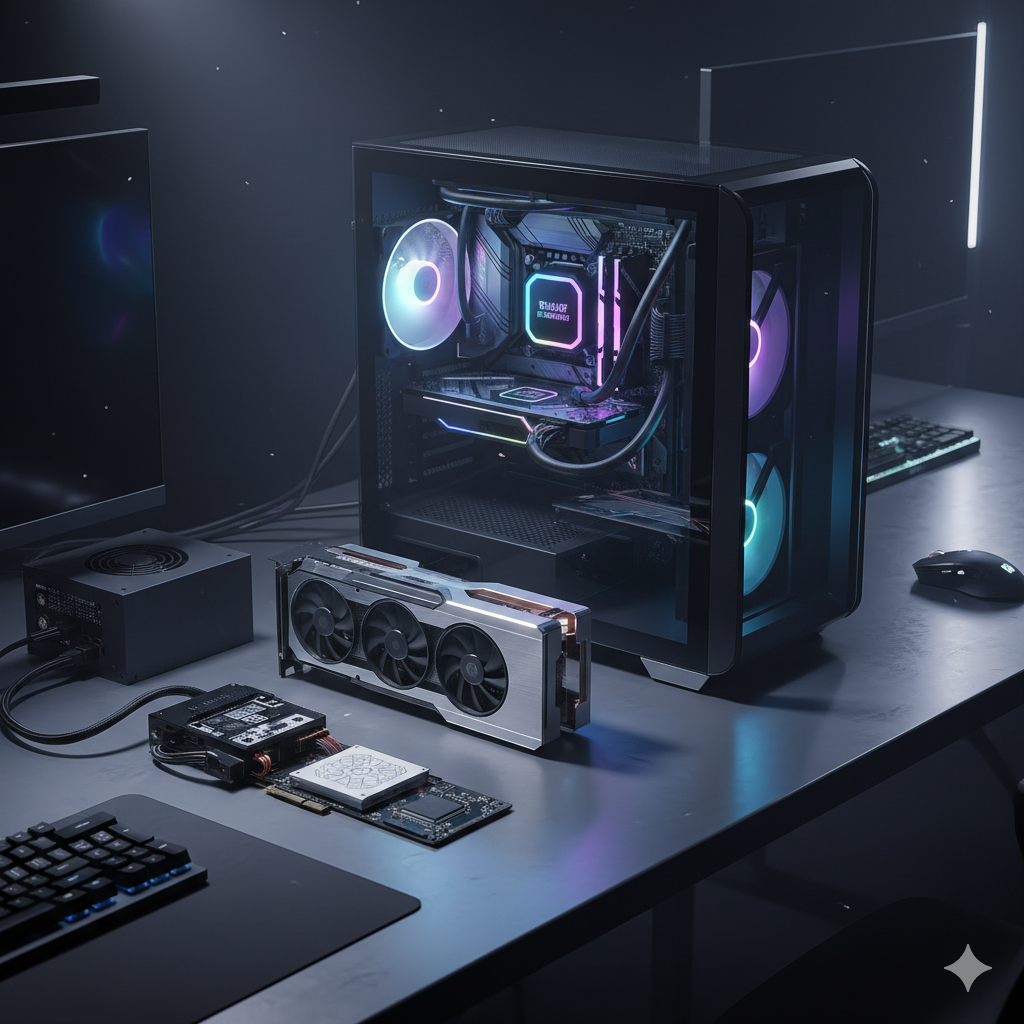
Welcome, IT students, to the foundational principles of desktop computing! While laptops and mobile devices dominate daily use, the desktop PC remains a cornerstone for performance, upgradability, and understanding core computing architecture. This document will comprehensively explore the major components, their variations, power considerations, basic troubleshooting, and common peripherals, providing a robust understanding suitable for a college-level IT curriculum.
1.1 Major Internal Components: The Core of the Machine
At its heart, a desktop computer is a symphony of interconnected parts, each playing a crucial role in processing, storing, and outputting data.
Author: Branch Education | View Channel
Have you ever wondered what it would be like to journey through the inside of your computer? In this video, we’re taking you on a 3D animated adventure to every piece of computer hardware inside a desktop computer. You’ll also see a nanoscopic view of the transistors inside the CPU and GPU. This video is like a biology dissection lab; instead, we’re opening up a computer and seeing all the various computer hardware inside.
Motherboard (Mainboard/System Board)
The motherboard is the central nervous system of the computer. It’s a large printed circuit board (PCB) that acts as the communication backbone, connecting all hardware components.
Key Functions:
Component Interconnection: Provides sockets and slots for the CPU, RAM, expansion cards (GPUs, network cards), and storage devices.
Power Distribution: Distributes electrical power from the Power Supply Unit (PSU) to all components.
BIOS/UEFI Firmware: Contains the Basic Input/Output System (BIOS) or its modern successor, Unified Extensible Firmware Interface (UEFI), which is firmware responsible for booting the system and managing hardware initialization.
Chipset: A set of integrated circuits on the motherboard that manages data flow between the CPU, memory, and peripherals. Modern chipsets typically consist of a single Platform Controller Hub (PCH), consolidating the functions of older Northbridge (memory and PCIe) and Southbridge (I/O) chips.
Form Factors: Common sizes include ATX, Micro-ATX, Mini-ITX, dictating the board’s dimensions and the number of expansion slots available.
Central Processing Unit (CPU)
The CPU, often called the “brain” of the computer, performs most of the processing tasks, executing instructions of computer programs.
Architecture: Modern CPUs feature multiple cores (independent processing units), threads (virtual cores for parallel processing), and various levels of cache memory (L1, L2, L3) for faster data access.
Key Specifications:
Clock Speed (GHz): The number of cycles the CPU can execute per second.
Core Count: Number of physical processing units.
Thread Count: Number of logical processing units.
Socket Type: Must match the motherboard’s CPU socket (e.g., Intel LGA 1700, AMD AM5).
TDP (Thermal Design Power): The maximum heat generated by the CPU that the cooling system is designed to dissipate.
Random Access Memory (RAM)
RAM is volatile memory used to temporarily store data and program instructions that the CPU needs to access quickly.
Function: Faster than storage drives, RAM allows the CPU to fetch data for active applications without constantly accessing slower storage.
Types: Primarily DDR SDRAM (Double Data Rate Synchronous Dynamic RAM), with current generations being DDR4 and DDR5.
Key Specifications:
Capacity (GB): Amount of data it can hold (e.g., 8GB, 16GB, 32GB).
Speed (MHz/MT/s): Data transfer rate (e.g., 3200MHz, 6000MT/s).
Latency (CL): Time delay before data can be retrieved, measured in clock cycles (e.g., CL16, CL30).
Graphics Processing Unit (GPU)
The GPU is a specialized electronic circuit designed to rapidly manipulate and alter memory to accelerate the creation of images, videos, and animations.
Integrated Graphics (iGPU): Built into the CPU, suitable for general computing and light graphical tasks.
Discrete Graphics Card (dGPU): A separate expansion card with its own dedicated memory (VRAM), essential for gaming, video editing, 3D rendering, and AI workloads.
Key Specifications (dGPU):
GPU Core/Stream Processor Count: Number of processing units.
VRAM Capacity (GB): Dedicated memory for graphical data.
Memory Interface (bit): Width of the memory bus.
Clock Speed: GPU and memory clock speeds.
Power Consumption: Significant power draw, requiring robust PSU.
Storage Devices
Storage devices hold data persistently, even when the computer is powered off.
Hard Disk Drives (HDDs): Traditional mechanical drives using spinning platters to store data.
Pros: High capacity, lower cost per gigabyte.
Cons: Slower, more susceptible to physical shock.
Solid State Drives (SSDs): Use NAND-based flash memory.
Pros: Significantly faster (boot times, application loading), more durable, silent.
Cons: Higher cost per gigabyte, finite write cycles (though extremely high for typical use).
Interfaces:
SATA (Serial ATA): Connects to the motherboard via SATA cables, limited by SATA III (6Gbps).
NVMe (Non-Volatile Memory Express): Connects via PCIe lanes, offering vastly superior speeds (up to 7000+ MB/s). NVMe drives typically come in M.2 form factor.
Power Supply Unit (PSU)
The PSU converts AC (Alternating Current) power from the wall outlet into DC (Direct Current) power, supplying the appropriate voltages to all computer components.
Key Specifications:
Wattage (W): Maximum power output (e.g., 550W, 750W, 1000W). Must be sufficient for all components.
Efficiency Rating (80 Plus Bronze, Gold, Platinum, Titanium): Indicates how efficiently the PSU converts AC to DC, with higher ratings meaning less wasted energy as heat.
Modularity: Cables can be non-modular (fixed), semi-modular (some fixed, some detachable), or fully modular (all detachable), affecting cable management.
Case (Chassis)
The computer case houses all internal components, provides structural integrity, and aids in cooling.
Form Factors: Full-tower, mid-tower, mini-tower, small form factor (SFF), dictating the size of the motherboard and components it can accommodate.
Cooling: Designed with airflow in mind, supporting various fan configurations and liquid cooling radiators.
1.2 Variations in Components: Tailoring Performance
Components come in a vast range to meet different performance needs and budgets.
CPU Variations
Consumer Grade: Intel Core i3/i5/i7/i9, AMD Ryzen 3/5/7/9. These offer a balance of core count, clock speed, and integrated graphics for everyday users, gamers, and content creators.
High-End Desktop (HEDT): Intel Core X-series, AMD Ryzen Threadripper. Feature more cores and PCIe lanes than mainstream CPUs, catering to professional workstations with extreme multitasking, 3D rendering, and scientific workloads.
Server Grade: Intel Xeon, AMD EPYC. Prioritize core count, memory capacity (ECC RAM support), virtualization features, and multi-socket capabilities for data centers and enterprise servers.
GPU Variations
Entry-Level/Integrated: Sufficient for web browsing, office tasks, and video playback.
Mid-Range: Good for mainstream gaming at 1080p resolution.
High-End/Enthusiast: Delivers exceptional performance for 1440p/4K gaming, virtual reality, and demanding professional applications.
Professional/Workstation: NVIDIA Quadro, AMD Radeon Pro. Optimized for CAD, 3D modeling, scientific visualization, and machine learning, featuring certified drivers and specific hardware accelerators.
RAM Variations
Capacity: Ranges from 4GB (minimal) to 128GB+ (workstations), with 16GB or 32GB being common for modern gaming and productivity.
Speed: Faster RAM generally improves system responsiveness and performance, especially for CPUs with integrated graphics.
ECC vs. Non-ECC: ECC RAM is primarily used in servers and workstations to prevent data corruption. Consumer-grade desktops typically use non-ECC RAM.
Storage Variations
SATA SSDs vs. NVMe SSDs: NVMe drives are significantly faster due to their direct PCIe connection, making them ideal for the operating system and frequently accessed applications. SATA SSDs are a cost-effective upgrade from HDDs.
Capacity: From 250GB SSDs for basic OS drives to multi-terabyte HDDs for mass storage of media and files.
Form Factors: 2.5-inch for SATA SSDs/HDDs, M.2 for NVMe SSDs, 3.5-inch for larger HDDs.
1.3 Power Requirements: Fueling the Beast
Understanding power requirements is crucial for system stability and longevity.
Total Wattage
The total wattage required by your system is the sum of the power draw of all components, with the CPU and GPU being the largest consumers.
GPU Power Connectors: High-end GPUs often require multiple 6-pin, 8-pin, or new 12VHPWR/12V-2x6 connectors directly from the PSU.
CPU Power Connectors: CPUs typically use 4-pin, 8-pin, or combined 8+4-pin connectors from the PSU.
Motherboard Power: The main motherboard power is supplied via a 20+4 pin ATX connector.
SATA Power: SATA devices use specific 15-pin power connectors.
PSU Selection
Overhead: Always select a PSU with at least 20-30% more wattage than your estimated total system draw to allow for power spikes, future upgrades, and optimal efficiency.
Efficiency: Higher 80 Plus ratings (Bronze, Gold, Platinum, Titanium) indicate better efficiency, meaning less power is wasted as heat, leading to lower electricity bills and less heat generated within the case.
Rail Design: Modern PSUs often feature a single 12V rail for stability, but some offer multiple rails. Understanding this can be important for high-power draw components.
Voltage Rails
+12V Rail: Crucial for CPU, GPU, and motherboard components.
+5V and +3.3V Rails: Primarily for SATA drives, USB ports, and other peripheral logic.
1.4 Basic Troubleshooting: Diagnosing Common Issues
Knowing how to diagnose basic desktop issues is an essential IT skill.
No Power/No Boot
Check Cables: Ensure all power cables (wall, PSU, motherboard 24-pin, CPU 8-pin, GPU PCIe power) are securely seated.
PSU Switch: Verify the PSU’s physical ON/OFF switch is in the ‘ON’ position.
Monitor Power: Ensure the monitor is powered on and connected.
RAM Reseat: Sometimes, reseating RAM modules can resolve no-boot issues.
Clear CMOS: Resetting the BIOS/UEFI settings (e.g., via a jumper on the motherboard or removing the CMOS battery) can resolve boot problems caused by incorrect settings.
Display Issues (No Signal, Artifacts)
Monitor Input: Confirm the monitor is set to the correct input source (HDMI, DisplayPort, DVI).
GPU Connection: Check the video cable connection at both the GPU and monitor.
Driver Update: Outdated or corrupted graphics drivers are a common cause of display issues. Boot into Safe Mode to update or reinstall drivers.
Test with iGPU: If your CPU has integrated graphics, connect the monitor to the motherboard’s video output to rule out a faulty discrete GPU.
Overheating
Monitor Temperatures: Use software (e.g., HWMonitor, Core Temp) to monitor CPU and GPU temperatures.
Clean Dust: Dust buildup in fans and heatsinks is a primary cause of overheating. Use compressed air to clean.
Airflow: Ensure proper case airflow with intake and exhaust fans.
Thermal Paste: If CPU temperatures are consistently high despite cleaning, the thermal paste between the CPU and its cooler may need replacement.
System Instability/Crashes (BSOD/Kernel Panics)
Event Viewer (Windows)/Logs (Linux): Check system logs for error codes or messages that can point to the root cause (e.g., driver issues, hardware failures).
RAM Test: Run memory diagnostic tools (e.g., MemTest86) to check for faulty RAM.
Driver Issues: Update or roll back recently installed drivers.
Storage Health: Check the health of SSDs/HDDs using S.M.A.R.T. (Self-Monitoring, Analysis and Reporting Technology) tools.
Software Tools for Troubleshooting: OS-Specific Approaches
Effective troubleshooting often involves using software tools to gather information and diagnose issues. The specific tools vary depending on the operating system.
Windows Troubleshooting Tools
Event Viewer: (Windows Key + R, type
eventvwr.msc) – A critical tool for examining system, security, and application logs. Look for warning and error events that correlate with the time of the issue.Resource Monitor (Resmon.exe): (Windows Key + R, type
resmon.exe) – Provides real-time information about CPU, disk, network, and memory usage. Useful for identifying resource bottlenecks or rogue processes.Task Manager (Ctrl+Shift+Esc): – Allows you to monitor running applications, processes, and services. You can also view performance graphs for CPU, memory, disk, and network.
Device Manager (devmgmt.msc): – Manages hardware devices. Look for yellow exclamation marks (driver issues) or red ’X’s (disabled devices). Allows for updating, rolling back, or uninstalling drivers.
Performance Monitor (perfmon.msc): – Collects and views performance data from a wide range of counters. Excellent for in-depth performance analysis over time.
System File Checker (SFC): (Run
sfc /scannowin an elevated Command Prompt) – Scans for and restores corrupted Windows system files.Disk Management (diskmgmt.msc): – Manages disk partitions and volumes. Useful for checking drive health, assigning drive letters, and formatting.
Windows Memory Diagnostic: (Search “Windows Memory Diagnostic” in Start) – Checks for RAM errors upon reboot.
macOS Troubleshooting Tools
Activity Monitor (Applications/Utilities): – Similar to Windows Task Manager, it monitors CPU, Memory, Energy, Disk, and Network usage. Helps identify resource-intensive applications.
Console (Applications/Utilities): – Displays system log messages, error messages, and other diagnostic information from macOS and applications. Useful for correlating system events with issues.
Disk Utility (Applications/Utilities): – Manages internal and external storage devices. Can be used to verify and repair disk errors (“First Aid”), format drives, and manage partitions.
System Information (Option-click Apple menu > System Information): – Provides detailed hardware and software specifications, including hardware configurations, network information, and software versions. Useful for verifying component recognition.
Diagnostic Tools (Apple Diagnostics/Apple Hardware Test): – Built-in diagnostics that run at startup (restart and hold ‘D’ key). Can test core hardware components like CPU, memory, and logic board.
About This Mac (Apple menu): – Offers a quick overview of your Mac’s hardware specifications, including processor, memory, and graphics.
Linux Troubleshooting Tools
dmesg(Display Message Buffer): (Rundmesg | less) – Shows messages from the kernel ring buffer, providing boot messages and kernel-level errors related to hardware.journalctl(Systemd Journal): (Runjournalctl -xeorjournalctl -p err) – Queries the systemd journal for system log entries. Excellent for detailed logs from various services and the kernel.top/htop(Process Monitoring): – Real-time display of running processes, CPU usage, memory usage.htopis an enhanced, more user-friendly version.free -h(Memory Usage): – Displays total, used, and free amounts of physical and swap memory.df -h/du -sh(Disk Usage): –df -hshows disk space usage of mounted file systems.du -shshows disk usage of files and directories.lshw(List Hardware): (Runsudo lshw) – Generates a detailed list of system hardware, including CPU, memory, storage, and network interfaces.lsblk(List Block Devices): – Lists information about all available block devices (hard drives, SSDs) and their partitions.lspci/lsusb(List PCI / USB Devices): –lspcilists all PCI devices (GPUs, network cards) andlsusblists USB devices. Useful for verifying device detection.smartctl(S.M.A.R.T. for Linux): (Runsudo smartctl -a /dev/sda) – Command-line tool for monitoring the health of storage devices (HDDs/SSDs) via S.M.A.R.T. data.
1.5 Common Peripherals: Extending Functionality
Peripherals are external devices that connect to the computer, extending its input, output, and storage capabilities.
Input Devices
Keyboard: The primary text input device.
Types: Membrane, mechanical (various switch types like Cherry MX, Gateron), ergonomic.
Connectivity: USB (wired), Bluetooth (wireless).
Mouse: Primary pointing and clicking device.
Types: Optical, laser.
Key Specifications: DPI (dots per inch) for sensitivity, polling rate for responsiveness.
Connectivity: USB (wired), 2.4GHz wireless dongle, Bluetooth.
Webcam: Captures video and images, essential for video conferencing.
- Key Specifications: Resolution (e.g., 1080p, 4K), frame rate (e.g., 30fps, 60fps).
Microphone: Captures audio input.
Types: Condenser, dynamic.
Connectivity: 3.5mm audio jack, USB.
Graphics Tablet/Digitizer: For digital art and precise input.
Output Devices
Monitor (Display): The primary visual output device.
Key Specifications: Resolution (e.g., 1080p, 1440p, 4K), Refresh Rate (Hz), Response Time (ms), Panel Type (IPS, VA, TN), HDR support.
Connectivity: HDMI, DisplayPort, DVI, VGA (legacy).
Speakers/Headphones: Audio output devices.
- Connectivity: 3.5mm audio jack, USB, Bluetooth.
Printer: Produces hard copies of digital documents.
Types: Inkjet, laser, thermal.
Connectivity: USB, Ethernet, Wi-Fi.
Storage Peripherals
External Hard Drives/SSDs: Provide additional portable storage.
- Connectivity: USB (Type-A, Type-C), Thunderbolt.
USB Flash Drives (Thumb Drives): Small, portable storage for quick data transfer.
Network Peripherals
Wi-Fi Adapter: Enables wireless network connectivity (often integrated on motherboards).
Types: USB dongle, PCIe card.
Standards: Wi-Fi 5 (802.11ac), Wi-Fi 6 (802.11ax), Wi-Fi 6E.
Ethernet Adapter: Provides wired network connectivity (integrated on all motherboards).
- Speeds: Gigabit Ethernet (1Gbps), 2.5GbE, 10GbE.
1.6 Disassembly/Reassembly
Author: ThisBytesForYou | View Channel
We go over The Best Way to Tear Down A PC or how to take your computer apart. We all want to build a PC, sometimes we need to tear it down, and in this video, we will show you how, safely.
1.7 Conclusion
A thorough understanding of desktop computer components is fundamental for any IT student. From the intricate data pathways on the motherboard to the sheer processing power of CPUs and GPUs, the persistent storage of SSDs, and the critical role of the PSU, each part contributes to the system’s overall functionality. Recognizing component variations allows for tailored system design, while mastering basic troubleshooting techniques ensures operational continuity. Finally, a grasp of common peripherals completes the picture, demonstrating how users interact with and extend the capabilities of these complex machines. This comprehensive knowledge forms the bedrock for further specialization in areas like system administration, network engineering, cybersecurity, and hardware development.
Keep exploring, keep building, and never stop learning about the incredible technology that powers our digital world!
Citations:
CompTIA A+ Core 1 (220-1101) and Core 2 (220-1102) Study Guide. Sybex. (Various editions, specific author depends on edition).
Hennessy, John L., and David A. Patterson. Computer Architecture: A Quantitative Approach. 6th ed., Morgan Kaufmann, 2017.
Tanenbaum, Andrew S., and Todd Austin. Structured Computer Organization. 6th ed., Pearson, 2013.
Intel Technology Glossary. Retrieved from https://www.intel.com/content/www/us/en/docs/glossary/terms.html
AMD Glossary. Retrieved from https://www.amd.com/en/technologies/glossary