The Evolution of Character Encoding
From ASCII to UTF-8
1 The Evolution of Character Encoding: From ASCII to UTF-8
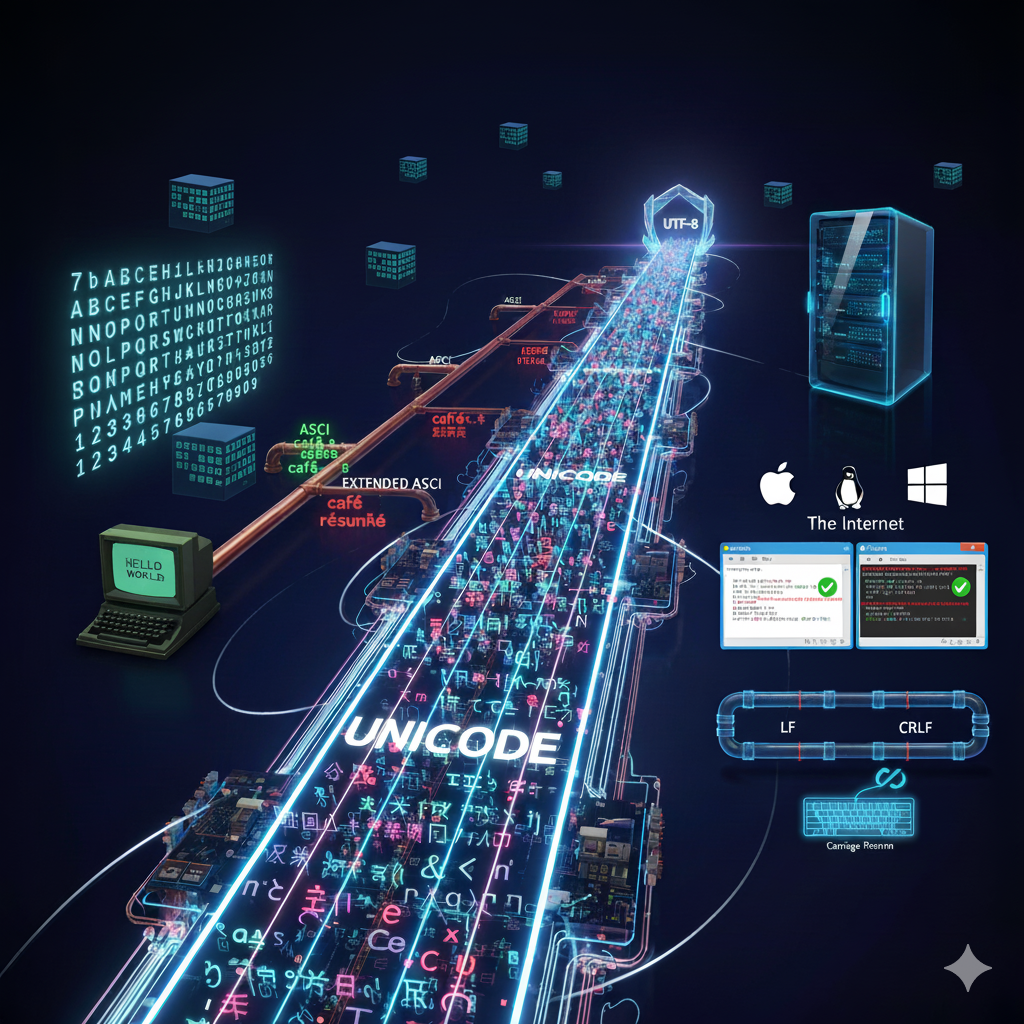
1.1 What is Character Encoding?
At its core, a computer only understands numbers. When you type a letter, a symbol, or a number on your keyboard, the computer needs a way to translate that character into a numerical value it can process and store. Character encoding is the system that maps these characters to specific numerical values. Think of it as a dictionary where each character is assigned a unique code point. Without a consistent encoding system, a file created on one computer would appear as a jumble of nonsensical characters on another.
1.2 The Dawn of Digital Text: ASCII and Extended ASCII
The first widely adopted character encoding standard was the American Standard Code for Information Interchange (ASCII). Developed in the 1960s, ASCII uses 7 bits to represent 128 characters, including uppercase and lowercase English letters, digits (0-9), punctuation marks, and control characters (like tab and carriage return). This was revolutionary at the time and became the foundation for early computing.
- ASCII Code Chart: To view the 128 standard characters and their decimal, hexadecimal, and binary values, you can refer to a complete or search for an online ASCII table.
However, the 7-bit limitation of ASCII meant it could not represent characters from other languages, such as á, ñ, or ç, let alone entire character sets like Chinese or Arabic. To address this, various vendors created their own Extended ASCII standards. These systems used an 8th bit, expanding the character set to 256. While this provided more room for symbols and accented letters, the lack of a universal standard meant that a document encoded in one Extended ASCII system (e.g., Code Page 437 for MS-DOS) would be unreadable on a system using a different one (e.g., ISO 8859-1 for Western European languages). This “code page” mess created significant compatibility issues, especially as the internet began to grow.
1.3 The Universal Solution: UTF-8
The need for a single, universal character encoding system became critical with the rise of the World World Web. The solution was Unicode, a comprehensive standard that assigns a unique number to every character in every language. The problem, however, was storage and transmission. Most characters in Unicode (like the letter ‘A’) would require more than the 8 bits that were standard at the time, leading to bloated file sizes.
This is where UTF-8 (Unicode Transformation Format - 8-bit) comes in. UTF-8 is a variable-width encoding scheme that can represent every character in the Unicode standard. Its key feature is its efficiency:
For all the characters in the original ASCII set, UTF-8 uses just one byte.
For most common characters in European languages, it uses two bytes.
For Asian languages and other less common characters, it uses three or four bytes.
This design was genius because it was backward compatible with ASCII (any valid ASCII file is also a valid UTF-8 file), and it was memory-efficient for common text, while still providing the power to handle the entire Unicode character set. UTF-8’s flexibility and efficiency made it the de facto standard for the internet and modern software systems, and it is now the dominant encoding for web content, operating systems, and programming languages.
1.4 Windows and the Encoding Conundrum
For many years, Microsoft resisted adopting UTF-8 as its default character encoding. Instead, they relied on their own series of code pages, most notably the Windows-1252 code page for Western languages. This decision was largely for backward compatibility with older applications and their legacy file systems.
This resistance created significant problems, particularly for developers. When a text file was created on a Linux or macOS system (which defaulted to UTF-8) and then opened on an older Windows machine, characters outside of the basic ASCII set would often be rendered incorrectly, appearing as question marks or strange symbols. This was a classic example of the “Mojibake” phenomenon, where text appears as gibberish due to a mismatch in encoding.
Modern versions of Windows have significantly improved their handling of UTF-8, and it is now the recommended encoding for new applications. However, compatibility issues with older software and the lingering influence of legacy code pages remain a challenge for some users and developers.
1.5 The Line Ending Debate
Another long-standing point of contention between Windows and other operating systems is the representation of a new line. When you press “Enter” on your keyboard:
Windows uses two characters: a Carriage Return (CR), represented by
\r(or0x0Din hexadecimal), followed by a Line Feed (LF), represented by\n(or0x0A). The combination is often referred to as CRLF. The Carriage Return Line Feed (CRLF) sequence is a direct carryover from the days of typewriters and electromechanical teleprinters.Unix-based systems (including Linux and macOS) use a single Line Feed (LF) character.
This seemingly minor difference can cause major problems, especially when sharing code or scripts between different operating systems. A script created on Windows might fail to run on a Linux server because the shell interprets the \r character as part of the command itself, leading to syntax errors.
1.6 Typing the World: Entering UTF-8 Characters
Entering non-standard characters from a keyboard can be done in various ways, depending on your operating system.
Linux (GNOME/KDE): Many Linux distributions use a compose key. You can often set a key (like the right
Altkey) as your compose key. Once active, you can type a sequence of characters to get the desired symbol. For example, to typeñ, you would pressComposethen~thenn. An alternative method, especially on GNOME, is to use the Unicode Input method: hold downCtrl+Shiftand then typeUfollowed by the hexadecimal code for the character you want to insert. For example,Ctrl+Shift+Uthen20ACto get the Euro sign€.Windows: Windows uses an Alt-Code system. For example, to type the Euro symbol
€, you would hold down theAltkey and type0128on the numeric keypad. Another common method is to use the Character Map utility.macOS: macOS has an “Option” key that acts similarly to a compose key. To type
ñ, you hold down theOptionkey and pressn, thennagain. You can also use the Character Viewer (Edit > Emoji & Symbols) to browse and insert symbols.
1.7 A Practical Demonstration of Cross-Platform Issues
You can easily see the impact of these differences by creating a simple text file on one operating system and opening it on another.
Create a file on Linux or macOS: Open a text editor (like
nano,vim, or TextEdit) and create a new file nameddemo.txt.Add text with special characters: Type the following content into the file, making sure to press
Enterto create a new line after the first sentence.
This is a test file for UTF-8.
Here is some "mojibake" to demonstrate the problem: café, résumé, ñ.
Here is a check mark: ✅
Save the file: Save
demo.txt.Transfer the file: Copy the
demo.txtfile to a USB drive or shared network folder that is accessible from a Windows computer.Open the file on Windows: On your Windows machine, open
demo.txtusing a simple text editor like Notepad.
What you will likely see:
Garbled Text: The characters like
é,é,ñ, and✅might appear as strange symbols or question marks. This is the Mojibake phenomenon, caused by Notepad misinterpreting the file’s UTF-8 encoding.Incorrect Line Endings: The second line of text may not have a proper line break. Instead of being on a new line, it might appear directly after the first sentence, with a small box or other unreadable symbol where the line break should be. This demonstrates the
LFvs.CRLFissue.
1.8 Key Resources
ASCII Table: For a full, interactive ASCII table, visit https://www.asciitable.com/.
List of Unicode Characters: visit https://www.w3schools.com/charsets/ref_html_utf8.asp.
UTF-8 Steering Committee: The IETF (Internet Engineering Task Force) has been a key player in the development and promotion of UTF-8. For technical details, refer to RFC 3629, which standardizes UTF-8. You can search for “RFC 3629” to find the official documentation.
Discover more about UTF-8 and Unicode at https://utf8.com/.
UTF-8 and Unicode: Visit https://utf8.com/