Using a Terminal
What is a Terminal?
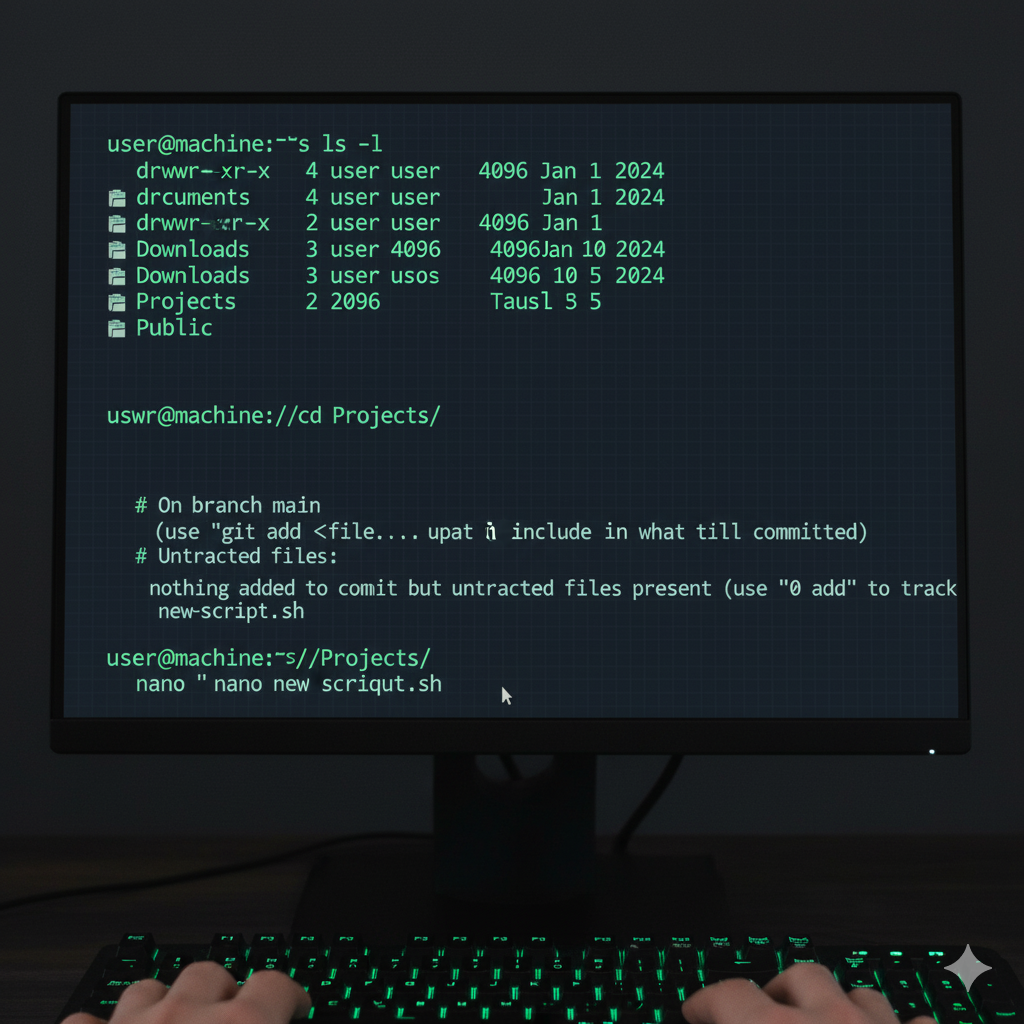
A terminal (also called a command line interface or CLI) is a text-based interface that allows you to interact with your computer’s operating system using typed commands instead of clicking on graphical elements. Think of it as having a direct conversation with your computer using a specialized language.
The terminal is one of the most powerful tools in computing. While it may seem intimidating at first, mastering the command line will make you significantly more efficient and give you access to advanced system capabilities.
Terminal vs. Shell vs. Environment
Before we dive deeper, let’s clarify some important terminology:
- Terminal: The application window that provides the interface for text input/output
- Shell: The command interpreter that processes your commands and communicates with the operating system
- Environment: The collection of variables and settings that define how your shell and programs behave
Understanding System Architecture
When you use a terminal, you’re operating in what’s called userspace - the area where user applications run. Your commands travel through several layers:
- Userspace: Where you type commands and applications run
- Shell: Interprets your commands
- System Calls: Interface between userspace and kernel
- Kernel Space: The core of the operating system that manages hardware
Understanding this architecture helps you troubleshoot issues and understand why certain commands require elevated permissions (sudo/Administrator) - they need to access kernel space.
Opening Your Terminal
The method for opening a terminal varies by operating system:
Debian-based (Ubuntu, Debian, Linux Mint):
- Press
Ctrl + Alt + T - Or search for “Terminal” in applications
- Or right-click on desktop → “Open Terminal”
- Default terminal: usually
gnome-terminal
Red Hat-based (RHEL, CentOS, Fedora):
- Press
Ctrl + Alt + T - Or search for “Terminal” in applications
- Or press
Alt + F2, typegnome-terminalorkonsole - Fedora may use
gnome-terminalorkonsoledepending on desktop
Alternative Method (All Distributions):
- Press
Alt + F2, typegnome-terminal,konsole, orxterm
Command Prompt:
- Press
Win + R, typecmd, press Enter - Or press
Win + X, select “Command Prompt”
PowerShell (Recommended):
- Press
Win + X, select “PowerShell” - Or search “PowerShell” in Start menu
Windows Terminal (Modern Option):
- Search “Windows Terminal” in Start menu
- Provides tabs and better features
Built-in Terminal:
- Press
Cmd + Space, type “Terminal”, press Enter - Or go to Applications → Utilities → Terminal
- Or press
Cmd + Space, type “iTerm” if installed
Alternative:
- Many developers prefer iTerm2 (downloadable)
Understanding Your Shell
What is a Shell?
A shell is a command-line interpreter that:
- Reads commands you type
- Interprets and executes them
- Returns results to you
- Manages environment variables and settings
Default Shells by Operating System
Understanding the default shell for each operating system helps set proper expectations:
- Linux:
bash(Bourne Again Shell) - most distributions - macOS:
zsh(Z Shell) - since macOS Catalina (10.15), previouslybash - Windows:
cmd(Command Prompt) - traditional default, with PowerShell increasingly common
Identifying Your Current Shell
# Check current shell
echo $SHELL

# Alternative method
ps -p $$

# See available shells
cat /etc/shells
Common shells:
bash- Bourne Again Shell (default on most Linux distributions)zsh- Z Shell (macOS default since Catalina, growing Linux adoption)fish- Friendly Interactive Shellsh- Original Bourne Shelldash- Debian Almquist Shell (Ubuntu’s /bin/sh)
- Debian/Ubuntu: Default user shell is
bash, but/bin/shpoints todash - Red Hat/CentOS/Fedora: Default user shell is
bash - Arch Linux: Default is
bash, butzshis popular
# In PowerShell
$PSVersionTable

# In Command Prompt
echo %COMSPEC%
Windows shells:
cmd- Command Prompt (traditional default)powershell- Windows PowerShell (increasingly default)pwsh- PowerShell Core (cross-platform, latest version)
Changing Your Shell
Changing your default shell affects all new terminal sessions. Make sure you understand the implications before making changes.
# Temporarily switch to a different shell
bash
zsh
fish

# Change default shell permanently
chsh -s /bin/bash      # Switch to bash
chsh -s /bin/zsh       # Switch to zsh

# Verify the change (may require logout/login)
echo $SHELL
# You can start different shells from within each other
cmd # Start Command Prompt from PowerShell
powershell # Start PowerShell from Command Prompt
pwsh # Start PowerShell Core (if installed)
# Exit to return to previous shell
exitShell Recommendation: Zsh with Oh My Zsh
For Linux and macOS users, we highly recommend upgrading to Zsh (Z Shell) with Oh My Zsh for a significantly enhanced terminal experience.
Zsh advantages over bash:
- Better tab completion (case-insensitive, typo correction)
- Improved globbing and pattern matching
- Built-in spell checking
- Better history management
- Plugin and theme support
- Smart command suggestions
Oh My Zsh benefits:
- Easy theme customization
- Hundreds of useful plugins
- Git integration with status indicators
- Syntax highlighting
- Auto-suggestions based on history
Installing Zsh and Oh My Zsh
# Install zsh
sudo apt update
sudo apt install zsh

# Verify installation
zsh --version

# Install Oh My Zsh
sh -c "$(curl -fsSL https://raw.github.com/ohmyzsh/ohmyzsh/master/tools/install.sh)"

# Change default shell to zsh
chsh -s $(which zsh)

# Log out and back in, or restart terminal
# Install zsh
# RHEL/CentOS 8+/Fedora:
sudo dnf install zsh
# RHEL/CentOS 7:
sudo yum install zsh
# Verify installation
zsh --version
# Install Oh My Zsh
sh -c "$(curl -fsSL https://raw.github.com/ohmyzsh/ohmyzsh/master/tools/install.sh)"
# Change default shell to zsh
chsh -s $(which zsh)
# Log out and back in, or restart terminal# Zsh is already installed on macOS Catalina+
# For older macOS versions, install via Homebrew:
brew install zsh
# Install Oh My Zsh
sh -c "$(curl -fsSL https://raw.github.com/ohmyzsh/ohmyzsh/master/tools/install.sh)"
# Zsh should already be your default shell on modern macOS
# If not, change it:
chsh -s $(which zsh)Recommended Oh My Zsh Configuration
After installing Oh My Zsh, edit your ~/.zshrc file to enable useful plugins and themes:
# Edit your zsh configuration
nano ~/.zshrc
# or
vim ~/.zshrc
Recommended plugins (add to plugins line in ~/.zshrc):
plugins=(
    git
    sudo
    history
    colorize
    command-not-found
    zsh-autosuggestions
    zsh-syntax-highlighting
)
Popular themes to try:
robbyrussell(default, clean and simple)agnoster(information-rich, requires powerline fonts)powerlevel10k(highly customizable, very popular)
Install additional useful plugins:
# Auto-suggestions
git clone https://github.com/zsh-users/zsh-autosuggestions ${ZSH_CUSTOM:-~/.oh-my-zsh/custom}/plugins/zsh-autosuggestions

# Syntax highlighting
git clone https://github.com/zsh-users/zsh-syntax-highlighting.git ${ZSH_CUSTOM:-~/.oh-my-zsh/custom}/plugins/zsh-syntax-highlighting

# Reload configuration
source ~/.zshrcOnce you have Zsh + Oh My Zsh installed, you’ll immediately notice:
- Auto-suggestions: Gray text showing commands from your history as you type
- Git integration: Your terminal prompt shows git branch and status
- Better tab completion: More intelligent file and command completion
- Syntax highlighting: Commands are colored as you type them
Environment Variables
Environment variables are dynamic values that affect how programs run on your system. They store information like system paths, user preferences, and configuration settings.
$PATH / %PATH%
The most important environment variable - tells the system where to find executable programs.
$SHELL / %COMSPEC%
Specifies your default shell program.
$JAVA_HOME / %JAVA_HOME%
Points to your Java installation directory (when Java is installed).
Viewing Environment Variables
# View a specific environment variable
echo $PATH
echo $SHELL
echo $JAVA_HOME
echo $HOME
echo $USER

# View all environment variables
env
# or
printenv

# View all variables (including shell variables)
set
REM View a specific environment variable
echo %PATH%
echo %COMSPEC%
echo %JAVA_HOME%
echo %USERNAME%
echo %USERPROFILE%
REM View all environment variables
set
REM View specific variable
set PATH# View a specific environment variable
$env:PATH
$env:JAVA_HOME
$env:USERNAME
$env:USERPROFILE
# View all environment variables
Get-ChildItem Env:
# Alternative syntax
echo $env:PATHUnderstanding $PATH
The PATH variable is crucial - it’s a list of directories where the system looks for executable files.
When you type a command like python or git, your system searches through each directory listed in PATH (in order) until it finds the executable. If the program isn’t in any PATH directory, you’ll get a “command not found” error.
# View PATH (colon-separated)
echo $PATH

# View PATH in readable format
echo $PATH | tr ':' '\n'

# Add a directory to PATH temporarily
export PATH=$PATH:/new/directory/path

# Add to PATH permanently (add to ~/.bashrc or ~/.zshrc)
echo 'export PATH=$PATH:/new/directory/path' >> ~/.bashrc
# View PATH (semicolon-separated) in PowerShell
$env:PATH -split ';'
# Add to PATH temporarily in PowerShell
$env:PATH += ";C:\new\directory\path"
# View PATH in Command Prompt
echo %PATH%File Management
Basic File Operations
# Copy files
cp source.txt destination.txt
cp -r source_folder destination_folder  # Copy directories recursively

# Move/rename files
mv oldname.txt newname.txt
mv file.txt /path/to/destination/

# Delete files
rm file.txt
rm -r folder/        # Remove directory and contents
rm -rf folder/       # Force remove (be careful!)

# View file contents
cat file.txt         # Display entire file
less file.txt        # View file page by page (q to quit)
head file.txt        # Show first 10 lines
tail file.txt        # Show last 10 lines

# Find files
find . -name "*.txt"           # Find all .txt files
find /home -name "filename"    # Find specific file
REM Copy files
copy source.txt destination.txt
xcopy source_folder destination_folder /E REM Copy directories
REM Move/rename files
move oldname.txt newname.txt
ren oldname.txt newname.txt REM Rename only
REM Delete files
del file.txt
rmdir folder REM Remove empty directory
rmdir /S folder REM Remove directory and contents
REM View file contents
type file.txt REM Display entire file
more file.txt REM View file page by page
REM Find files
dir *.txt /S REM Find all .txt files recursively
where filename REM Find file in PATH# Copy files
Copy-Item source.txt destination.txt
Copy-Item source_folder destination_folder -Recurse
# Move/rename files
Move-Item oldname.txt newname.txt
Rename-Item oldname.txt newname.txt
# Delete files
Remove-Item file.txt
Remove-Item folder -Recurse # Remove directory and contents
# View file contents
Get-Content file.txt # Display entire file
Get-Content file.txt | more # View page by page
# Find files
Get-ChildItem -Recurse -Filter "*.txt"
Get-ChildItem -Path C:\ -Recurse -Name "*filename*"Running Executable Files
Understanding Executables
Different operating systems handle executable files differently:
- Linux/macOS: Files with execute permissions, scripts with shebang (
#!/bin/bash) - Windows: Files with extensions like
.exe,.bat,.cmd,.ps1
Running Programs
# Run executable in current directory
./program_name
./script.sh

# Run program in PATH
program_name
python3 script.py
node app.js

# Make file executable
chmod +x script.sh

# Run with specific interpreter
bash script.sh
python3 program.py

# Check if command exists
which python3
command -v git
REM Run executable in current directory
program_name.exe
script.bat
REM Run program in PATH
notepad
python script.py
node app.js
REM Run PowerShell script from Command Prompt
powershell -ExecutionPolicy Bypass -File script.ps1
REM Check if command exists
where python
where git# Run executable in current directory
.\program_name.exe
.\script.ps1
# Run program in PATH
notepad
python script.py
node app.js
# Set execution policy (may require admin)
Set-ExecutionPolicy RemoteSigned -Scope CurrentUser
# Check if command exists
Get-Command python
Get-Command git -ErrorAction SilentlyContinueWorking with $JAVA_HOME
If you have Java installed, the JAVA_HOME environment variable should point to your Java installation:
# Check if JAVA_HOME is set
echo $JAVA_HOME

# If not set, find Java installation
which java
/usr/libexec/java_home    # macOS specific

# Set JAVA_HOME temporarily
export JAVA_HOME=/path/to/java/home

# Add to shell profile permanently
echo 'export JAVA_HOME=/path/to/java/home' >> ~/.bashrc
echo 'export PATH=$JAVA_HOME/bin:$PATH' >> ~/.bashrc
# Check if JAVA_HOME is set
echo $env:JAVA_HOME
# Set JAVA_HOME temporarily in PowerShell
$env:JAVA_HOME = "C:\Program Files\Java\jdk-17"
# Set permanently (requires admin or user environment variables)
[Environment]::SetEnvironmentVariable("JAVA_HOME", "C:\Program Files\Java\jdk-17", "User")Practical Exercises
Create a backup of important files and work in a test directory. These exercises are designed to be safe, but it’s always good practice to be cautious when learning new commands.
Exercise 1: Environment Exploration
- Open your terminal
- Identify your current shell
- Display your PATH variable in a readable format
- Check if JAVA_HOME is set
- Find your home directory path
You should see your shell (likely bash, zsh, or cmd), a list of directories in your PATH, and your home directory location. JAVA_HOME may or may not be set depending on your system.
Exercise 3: Basic File Management
- Copy
file1.txttofile1_backup.txt - Rename
file2.txttorenamed_file.txt - Create a subdirectory called
backup - Move
file1_backup.txtinto thebackupdirectory - Remove the original
file1.txt
The rm command (Linux/macOS) and del command (Windows) permanently delete files. There’s no “recycle bin” recovery from the command line, so double-check your commands before pressing Enter.
Exercise 4: Running Programs
- Create a simple script file
- Make it executable (Linux/macOS)
- Run the script from the command line
- Try running a system program like
pythonornode(if installed)
If you get “command not found” errors, the program may not be installed or not in your PATH. This is normal and expected for programs that aren’t installed on your system.
Tips and Best Practices
- Use Tab Completion: Press Tab while typing to auto-complete file/directory names
- Command History: Use Up/Down arrows to navigate through previous commands
- Clear Screen: Type
clear(Linux/macOS) orcls(Windows) to clear the terminal - Stop Running Programs: Press
Ctrl+Cto interrupt running programs - Multiple Terminals: Open multiple terminal windows/tabs for complex tasks
- Manual Pages: Use
man command(Linux/macOS) orGet-Help command(PowerShell) for help
- Be Careful with Deletion Commands:
rm,del, andRemove-Itempermanently delete files - Verify Paths: Always confirm you’re in the correct directory before running commands
- Backup Important Files: Before experimenting, make copies of important data
- Understand Permissions: Some commands require administrator/sudo privileges
- Never Run Unknown Scripts: Only execute code you understand or trust
- Double-Check Destructive Commands: Take a moment to review commands that modify or delete files
Summary
You’ve learned the fundamentals of working with terminals and shells:
- Terminal: Your text-based interface to the computer
- Shell: The command interpreter (bash, zsh, PowerShell, etc.)
- Environment Variables: Dynamic values that affect program behavior
- File Navigation: Moving around the filesystem with commands
- File Management: Creating, copying, moving, and deleting files
- Running Executables: Executing programs from the command line
These skills form the foundation for system administration, development, and advanced computing tasks. Practice regularly to build your confidence and efficiency with command-line interfaces.
The terminal might seem intimidating at first, but with practice, you’ll find it’s often faster and more powerful than graphical interfaces for many tasks. Consider setting up Zsh with Oh My Zsh for an enhanced experience, and don’t hesitate to explore the many powerful command-line tools available for your platform.