Demystifying File Types
A Guide to Magic Numbers
1 Demystifying File Types: A Guide to Magic Numbers
1.1 How Your OS Knows What’s What
Ever double-clicked a file and watched your computer magically open it with the right program? Or perhaps you’ve been frustrated when a file just refused to open, or worse, opened with the wrong application? Understanding how your operating system determines a file’s type is more than just tech trivia; it’s crucial for efficient computing, troubleshooting, and even cybersecurity. In this article, we’ll dive into the fascinating world of file types, explore the concept of magic numbers, and see how different operating systems handle this fundamental task.
Your operating system needs to know what kind of data a file contains to interact with it correctly. Should it open it as a text document, a picture, a video, or an executable program? There are several methods operating systems employ:
File Extensions (The Common but Flawed Approach): This is probably the most familiar method, especially for Windows users. A file extension is the suffix at the end of a filename, like
.txtfor text files,.jpgfor images, or.exefor executable programs. The OS associates these extensions with specific applications.Magic Numbers (The Reliable Identifier): This is a more robust and secure method. Many file formats include a specific sequence of bytes at the very beginning of the file, known as a magic number or file signature. This sequence acts like a unique identifier, telling the operating system exactly what type of data it holds, regardless of its filename or extension.
MIME Types (Internet’s File Type Standard): While primarily used for web communication, Multipurpose Internet Mail Extensions (MIME) types (e.g.,
image/jpeg,text/plain) are also sometimes used by operating systems, especially for files downloaded from the internet.
1.2 Magic Numbers: The Unsung Heroes
Imagine you have a mystery box. The label on the outside might tell you what’s inside, but if you look inside and see a specific, unmistakable object, you’re absolutely certain. Magic numbers are like that unmistakable object. They’re a short sequence of bytes (often 2 to 4, but can be longer) at the very beginning of a file that uniquely identifies its format.
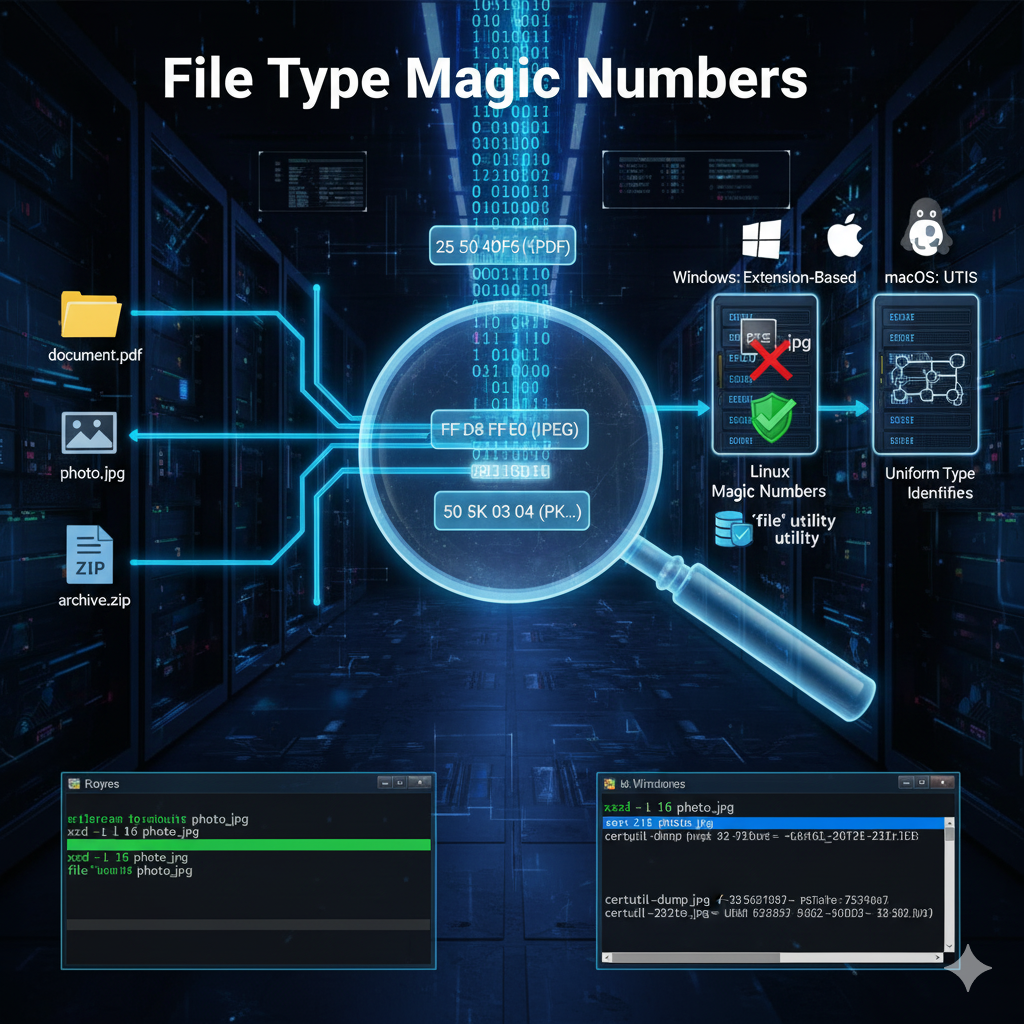
Here are a few common examples, showing their hexadecimal and text representations, as a hex editor would display them:
JPEG images often start with
FF D8 FF E0(in hexadecimal).PDF documents typically begin with
25 50 44 46(hex) which corresponds to the text%PDF.ZIP archives usually start with
50 4B 03 04(hex) which corresponds to the textPK...
This system is much more reliable than relying solely on file extensions because the magic number is an intrinsic part of the file’s structure.
1.3 Operating System Approaches
Let’s look at how the big three OSes handle file type determination.
Windows: The Extension-Dependent World (and its Risks)
Windows primarily relies on file extensions to determine a file’s type and the default application to open it. When you install software, it often registers itself to handle specific file extensions.
How it works:
User double-clicks
document.docx.Windows sees the
.docxextension.It checks its registry to see which program is associated with
.docxfiles.Microsoft Word is launched, and the document is opened.
The heavy reliance on extensions in Windows can be a significant security vulnerability. For example, an attacker can name a malicious executable file picture.jpg.exe. If Windows is configured to hide known file extensions, the user might only see picture.jpg. Clicking it would then execute the hidden .exe component. This lack of intrinsic verification makes Windows susceptible to such social engineering attacks.
Linux: Embracing Magic and More Robustness
Linux-based operating systems take a more comprehensive approach, prioritizing magic numbers and content analysis over mere file extensions. While extensions are often present and helpful for users, they are not the primary mechanism for file type determination.
How it works:
Linux systems use a utility called
filewhich consults a database of magic numbers.When you try to open a file, the OS often uses tools like
fileto determine its true nature.Based on this determination, the appropriate default application is launched.
This approach is inherently more secure because renaming a malicious executable from malware.exe to photo.jpg won’t fool the system. The file utility will still correctly identify it as an executable.
macOS: A Hybrid Approach with Uniform Type Identifiers (UTIs)
macOS employs a sophisticated system called Uniform Type Identifiers (UTIs) that combines aspects of file extensions, MIME types, and internal content analysis (including magic numbers).
How it works:
Every file on macOS has an associated UTI, which is a reverse-DNS string (e.g.,
public.jpeg).When a file is created or downloaded, its UTI is determined by its extension, MIME type, and often by examining its contents.
Applications declare which UTIs they can handle.
When you open a file, macOS uses its UTI to find the most appropriate application.
While macOS still uses extensions for user convenience, UTIs provide a much more robust and flexible system for identifying and managing file types, offering better security and interoperability than extension-only reliance.
1.4 Practical Examples: Seeing Magic Numbers in Action
Let’s get our hands dirty and see these magic numbers for ourselves!
Now, let’s examine a file’s magic number.
On Linux/macOS (using xxd and file):
Open your terminal.
Navigate to where your file is saved.
Use
xxdto view the hexadecimal dump of the file:
xxd -l 16 my_image.jpg-l 16 tells xxd to show only the first 16 bytes. The output will show the magic numbers at the beginning:
00000000: ff d8 ff e0 00 10 4a 46 49 46 00 01 01 00 JFIF....The ff d8 ff e0 at the very beginning are the magic bytes for a JPEG file.
- Use
fileto identify the file type:
file my_image.jpgOutput:~~~~
my_image.jpg: JPEG image data, JFIF standard 1.01Notice how file correctly identified it as a JPEG, even without looking at the extension first.
On Windows (using CertUtil or a hex editor):
Windows doesn’t have xxd or file built-in, but you can use CertUtil for a quick hex dump or a dedicated hex editor.
Open Command Prompt or PowerShell.
Navigate to where your image is saved.
Use
CertUtil(Command Prompt):
certutil -dump -f my_image.jpgThis will output a lot of data. Look at the very beginning for the first few bytes. You’ll find FF D8 FF E0.
- Using a Hex Editor: Download and install a free hex editor like HxD. Open your file in the hex editor, and you’ll immediately see the hexadecimal values at the beginning, including the magic number.
1.5 Conclusion
Understanding how file types are determined goes beyond just opening files; it’s about comprehending the fundamental interactions between your data and your operating system. While file extensions offer convenience, their inherent weaknesses highlight the importance of more robust methods like magic numbers. Linux and macOS leverage these intrinsic file signatures for a more secure and reliable identification process, whereas Windows’ heavy reliance on extensions introduces potential security risks. As you navigate the digital world, being aware of these mechanisms will empower you to troubleshoot effectively, protect yourself from common exploits, and appreciate the hidden magic that makes your computer work!
1.6 References
Wikipedia - File Formats: https://en.wikipedia.org/wiki/File_format
Wikipedia - List of File Signatures: https://en.wikipedia.org/wiki/List_of_file_signatures
The
filecommand (Linux man page):man file(or search online for “linux file command”)Apple Developer Documentation - Uniform Type Identifiers Overview: https://www.google.com/search?q=https://developer.apple.com/library/archive/documentation/FileManagement/Conceptual/understanding_utis/understanding_utis.html