Understanding Package Managers
Managing Software
1 Understanding Package Managers
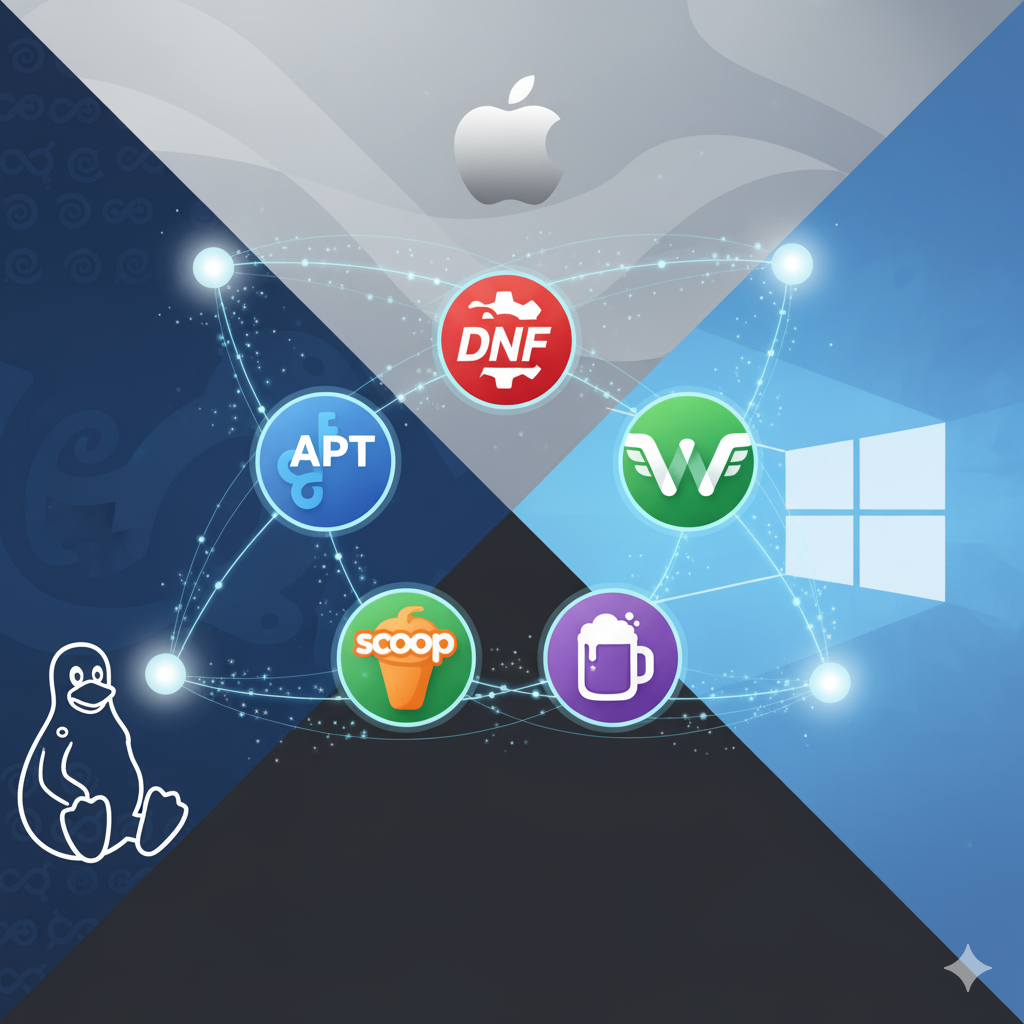
Understanding the core tools of the trade is crucial, and package managers are foundational. A package manager is a system that automates the process of installing, updating, configuring, and removing software. It handles the dependencies, or other software that a program needs to function, ensuring a smooth and reliable installation.
1.1 Package Manager vs. GUI Installer
A common point of confusion is the difference between a package manager and a graphical user interface (GUI) installer.
GUI Installers are what most casual users are familiar with. You download a file (like an
.exeor.dmg), double-click it, and follow a series of on-screen prompts. This is a manual, one-off process. You’re responsible for finding the installer, and if it has dependencies, the process might fail or require you to manually find and install those as well.Package Managers are typically command-line tools that centralize software distribution. Instead of hunting for individual installers, you use a single command to find and install a program from a central repository. The package manager automatically resolves and installs all required dependencies. This automation saves an incredible amount of time and effort, and it’s essential for system administrators, developers, and anyone who needs to manage many software installations.
1.2 Why Package Managers?
Package managers are a critical skill for several reasons:
Automation and Efficiency: In a professional setting, you’ll manage dozens, if not hundreds, of systems. Manually installing software on each machine is not feasible. Package managers allow you to script and automate software deployment, saving significant time.
Dependency Management: They prevent “dependency hell” by automatically handling the complex web of software requirements. You’ll never again have to wonder why a program isn’t working because a required library is missing.
System Integrity: By pulling from trusted repositories, package managers help ensure the software you install is legitimate and free from tampering. They also manage updates, which is vital for security and system stability.
Version Control: They make it easy to install specific versions of software and to roll back to a previous version if an update causes issues.
1.3 Popular Package Managers
Here are some of the most popular package managers for major operating systems:
Red Hat Linux (and derivatives like Fedora and CentOS): The DNF (Dandified YUM) package manager is the modern successor to the older YUM tool. It uses the
.rpmpackage format.Debian Linux (and derivatives like Ubuntu): The APT (Advanced Package Tool) is the most common package manager. It works with the
.debpackage format.Windows: Scoop is a popular command-line installer that focuses on “portable” applications and doesn’t require administrator privileges. Chocolatey and Winget are other popular options. Choose Winget for simplicity and official integration, Chocolatey for its massive, mature package library and automation, and Scoop for user-level, portable installations and a Linux-like experience for developers. Your ideal choice depends on your priority: ease of use and standard installs (Winget), power and package availability (Chocolatey), or developer-focused, clean installations (Scoop).
macOS: Homebrew is a widely-used package manager that simplifies the installation of command-line tools and desktop applications.
Using Popular Package Managers
Here’s how to perform common tasks with dnf, apt, scoop, and brew.
Red Hat Linux: DNF
Update repositories:
sudo dnf check-updateList all installed packages:
dnf list installedGet info on a package:
dnf info [package_name]Install a package:
sudo dnf install [package_name]Remove a package:
sudo dnf remove [package_name]
Debian Linux: APT
Update repositories:
sudo apt updateList all installed packages:
apt list --installedGet info on a package:
apt show [package_name]Install a package:
sudo apt install [package_name]Remove a package:
sudo apt remove [package_name]Remove a package and its config files:
sudo apt purge [package_name]
Windows: Scoop
List all installed packages:
scoop listGet info on a package:
scoop info [package_name]Install a package:
scoop install [package_name]Remove a package:
scoop uninstall [package_name]
macOS: Homebrew
Update repositories:
brew updateList all installed packages:
brew listGet info on a package:
brew info [package_name]Install a package:
brew install [package_name]Remove a package:
brew uninstall [package_name]
1.4 How to Install Scoop on Windows and Homebrew on macOS
Installing these package managers is a simple process that sets you up for more efficient software management.
Installing Scoop on Windows
See https://scoop.sh/ for more on using Scoop.
Open PowerShell (not Command Prompt) as a regular user.
Set the execution policy to allow scripts from remote sources.
Set-ExecutionPolicy -ExecutionPolicy RemoteSigned -Scope CurrentUser- Install Scoop with the following command.
Invoke-RestMethod -Uri https://get.scoop.sh | Invoke-Expression- Optionally, add the “extras” bucket to access more software.
scoop bucket add extrasInstalling Homebrew on macOS
See https://brew.sh/ for more on using Homebrew.
Open the Terminal application.
Install Xcode Command Line Tools, which Homebrew requires.
xcode-select --install- Run the official installation script.
/bin/bash -c "$(curl -fsSL https://raw.githubusercontent.com/Homebrew/install/HEAD/install.sh)"- Follow the on-screen instructions to complete the installation and set up your
PATHenvironment variable as directed. This ensures your system can findbrewand the applications it installs.